What You'll Build
When you drive into your driveway, the parking area light turns on automatically. When you leave, it turns off. The automation uses:
- GeoHook to detect when you enter or leave your home area
- Loxone Miniserver to control the light via a Virtual Input
Prerequisites
- GeoHook installed on your iPhone
- A Loxone Miniserver on your local network (or reachable via Loxone Cloud DNS)
- Loxone Config software to set up the Virtual Input
- A light output already configured in Loxone (the physical wiring)
Network tip: Your Miniserver needs to be reachable from your iPhone when you arrive. If you don’t use Loxone Cloud DNS, we recommend Tailscale — a free VPN that makes your home network accessible from anywhere without opening ports or configuring your router.
Step 1: Create a Virtual Input in Loxone Config
Open Loxone Config and connect to your Miniserver.
- In the periphery tree, right-click Virtual Inputs and select Add Virtual Input
- Name it something descriptive, e.g.
GeoHook Parking - Note the name you gave it — you'll need it for the webhook URL
- Connect the Virtual Input to your lighting controller (e.g. a Switch or Lighting Controller function block)
- Save and deploy the configuration to your Miniserver
Tip: Use a Stairwell Light Switch (Treppenlichtschalter) function block if you want the light to turn off automatically after a set duration, regardless of GeoHook. This way the light won't stay on forever if the exit trigger is missed.
Step 2: Find Your Webhook URL
The Loxone Miniserver HTTP API follows this pattern:
http://<miniserver-ip>/dev/sps/io/<input-name>/<value>For your parking light, you need two URLs:
Turn ON (entry action):
http://192.168.1.100/dev/sps/io/GeoHook%20Parking/onTurn OFF (exit action):
http://192.168.1.100/dev/sps/io/GeoHook%20Parking/off
Note: Replace
192.168.1.100 with your Miniserver's IP address. Spaces in the input name must be URL-encoded as %20. If you use Loxone Cloud DNS, the URL would be https://dns.loxonecloud.com/<your-serial>/dev/sps/io/... instead.
Authentication
The Miniserver requires authentication. You can either:
- Use GeoHook's built-in username/password fields in the webhook settings (recommended)
- Or include credentials in the URL:
http://user:pass@192.168.1.100/dev/sps/io/...
Step 3: Set Up the Area in GeoHook
- Open GeoHook and tap + to add a new area
- Name it “Home” (or whatever fits)
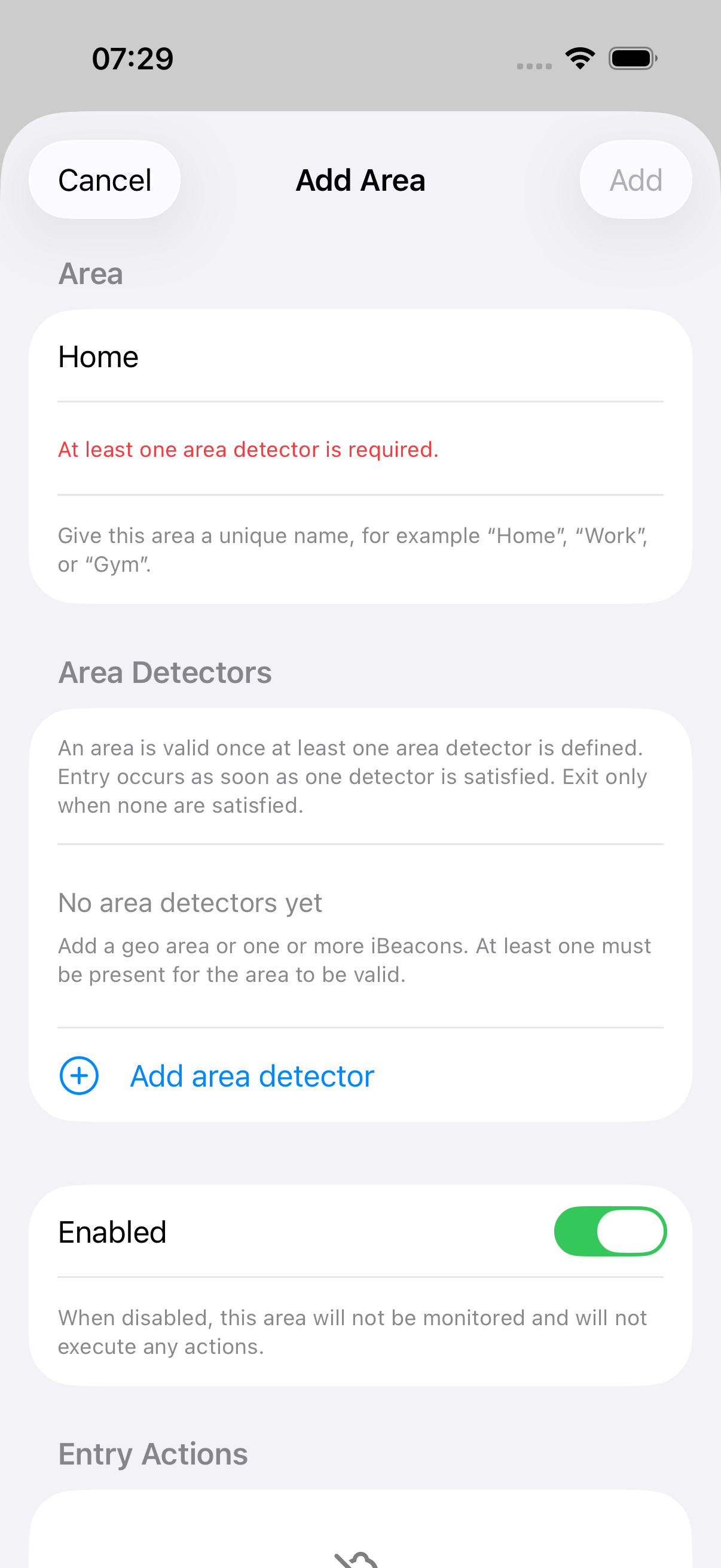
- Tap Add area detector
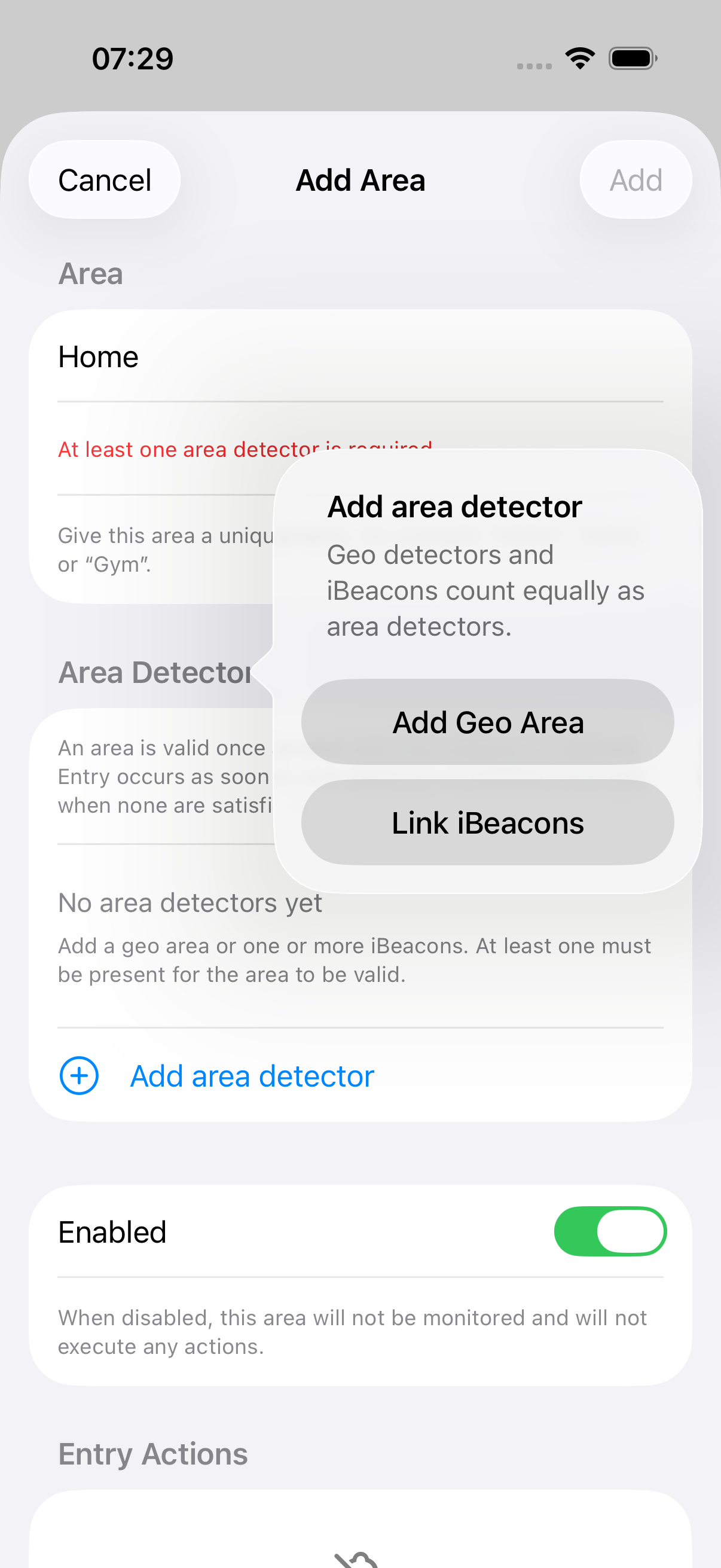
- Choose Add Geo Area
- Tap Use Current Location if you're there, or use Edit on Map to place the pin
- Adjust the radius to cover your driveway and parking area (150m is a good starting point)
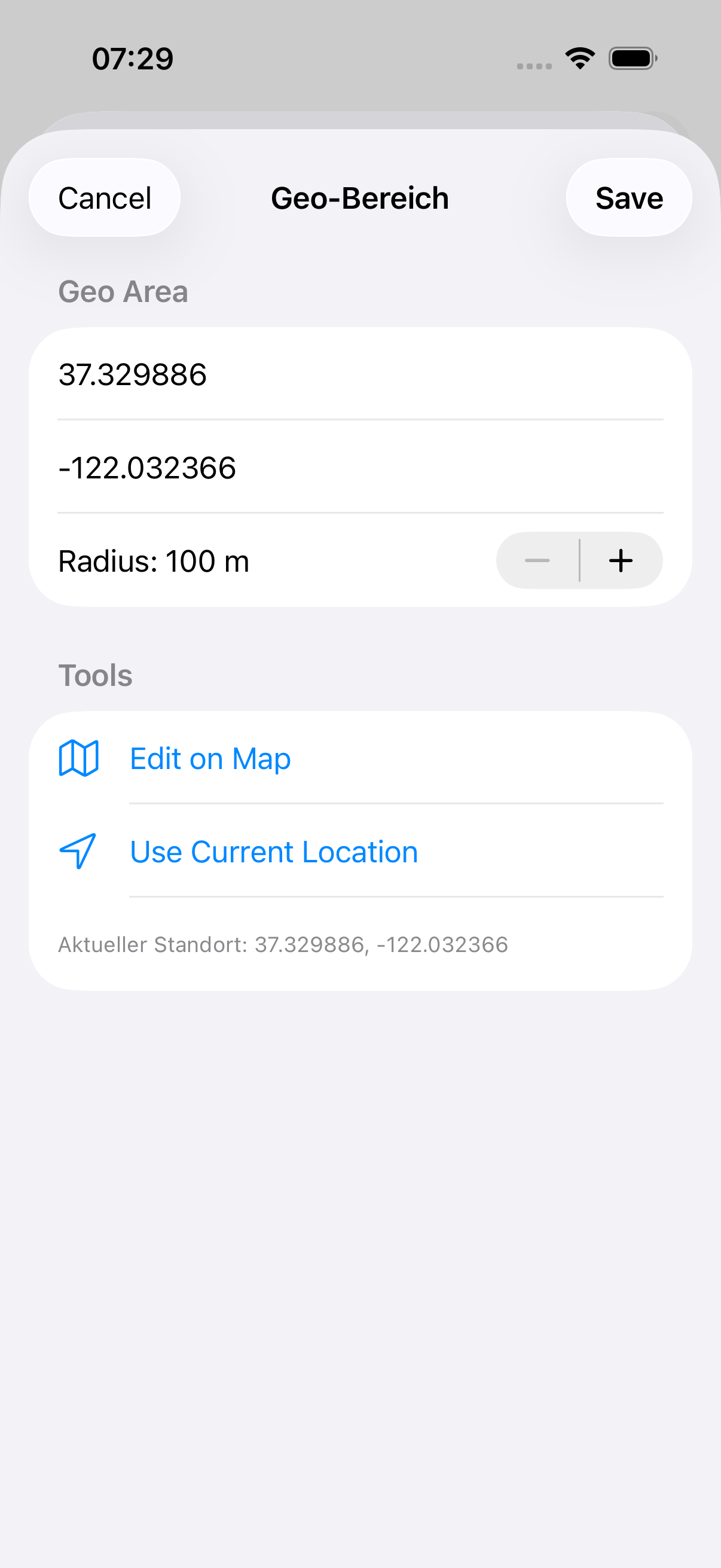
- Confirm with Save
Why “Add Geo Area”? GeoHook supports two types of area detectors: Geo Area (GPS-based circle) and iBeacons (Bluetooth-based). Both count equally — an entry is triggered as soon as any detector is satisfied. For this guide, a Geo Area is all you need. If you later want more precise detection, you can add an iBeacon to the same area.
Step 4: Add the Entry Webhook (Light ON)
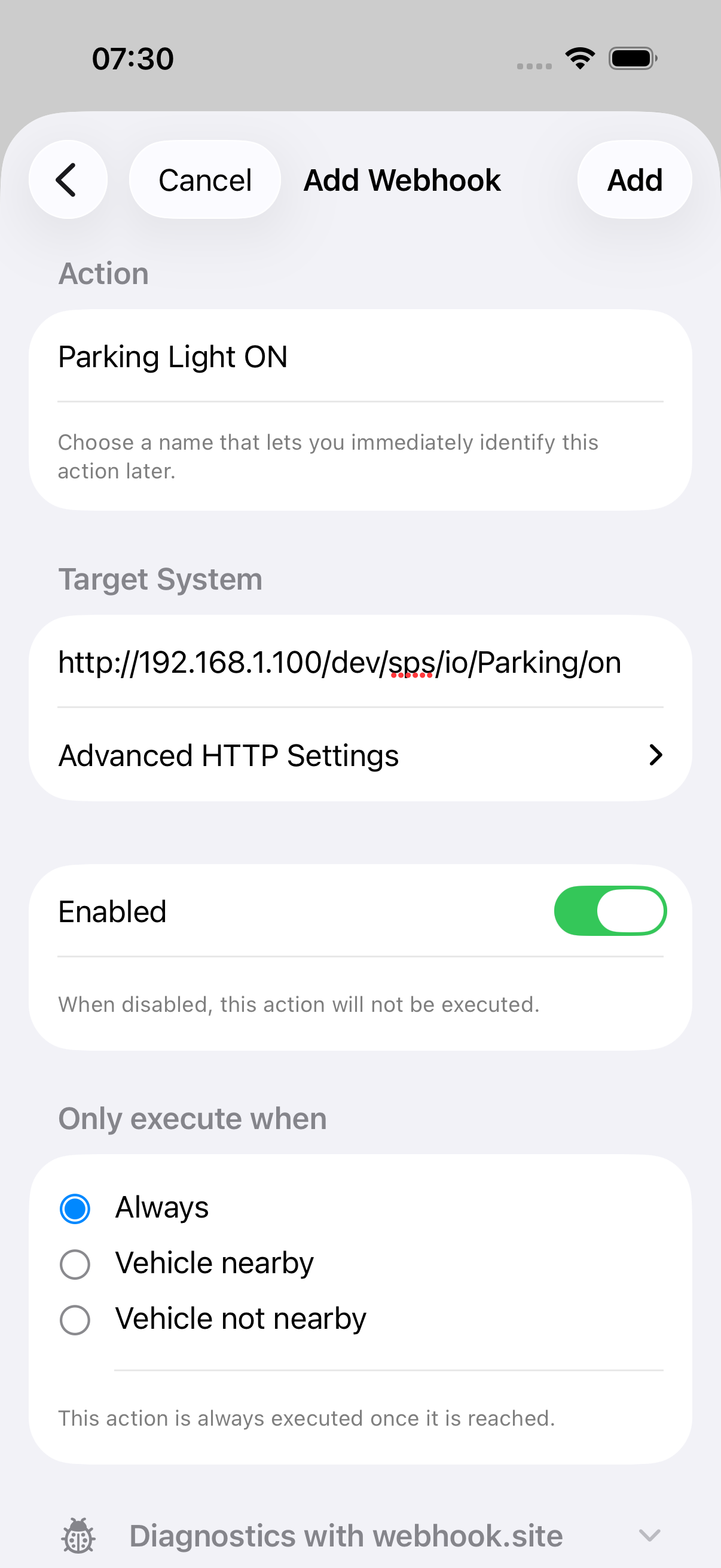
- In the location editor, scroll to Entry Actions and tap Add Action
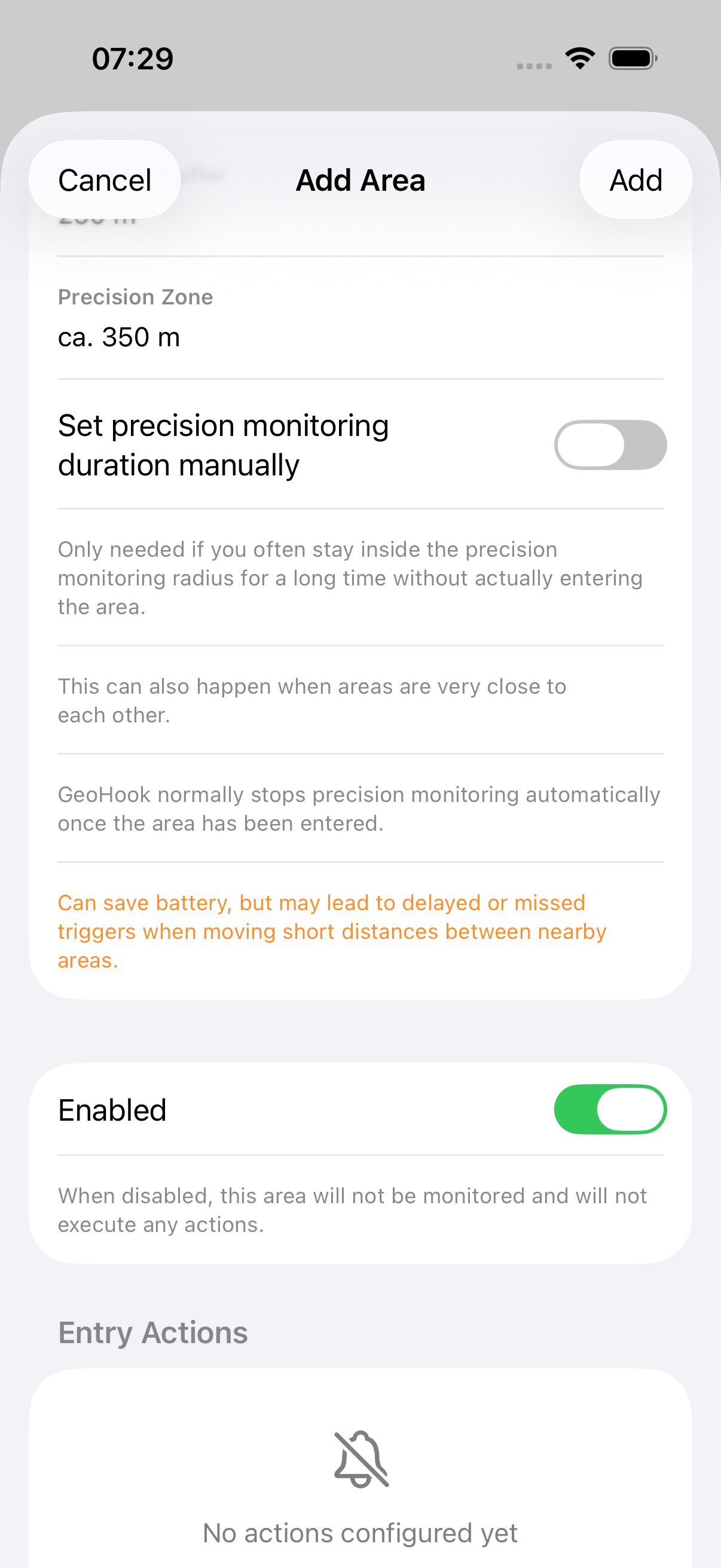
- Configure the webhook:
- Name:
Parking Light ON - URL:
http://192.168.1.100/dev/sps/io/GeoHook%20Parking/on - Method: GET
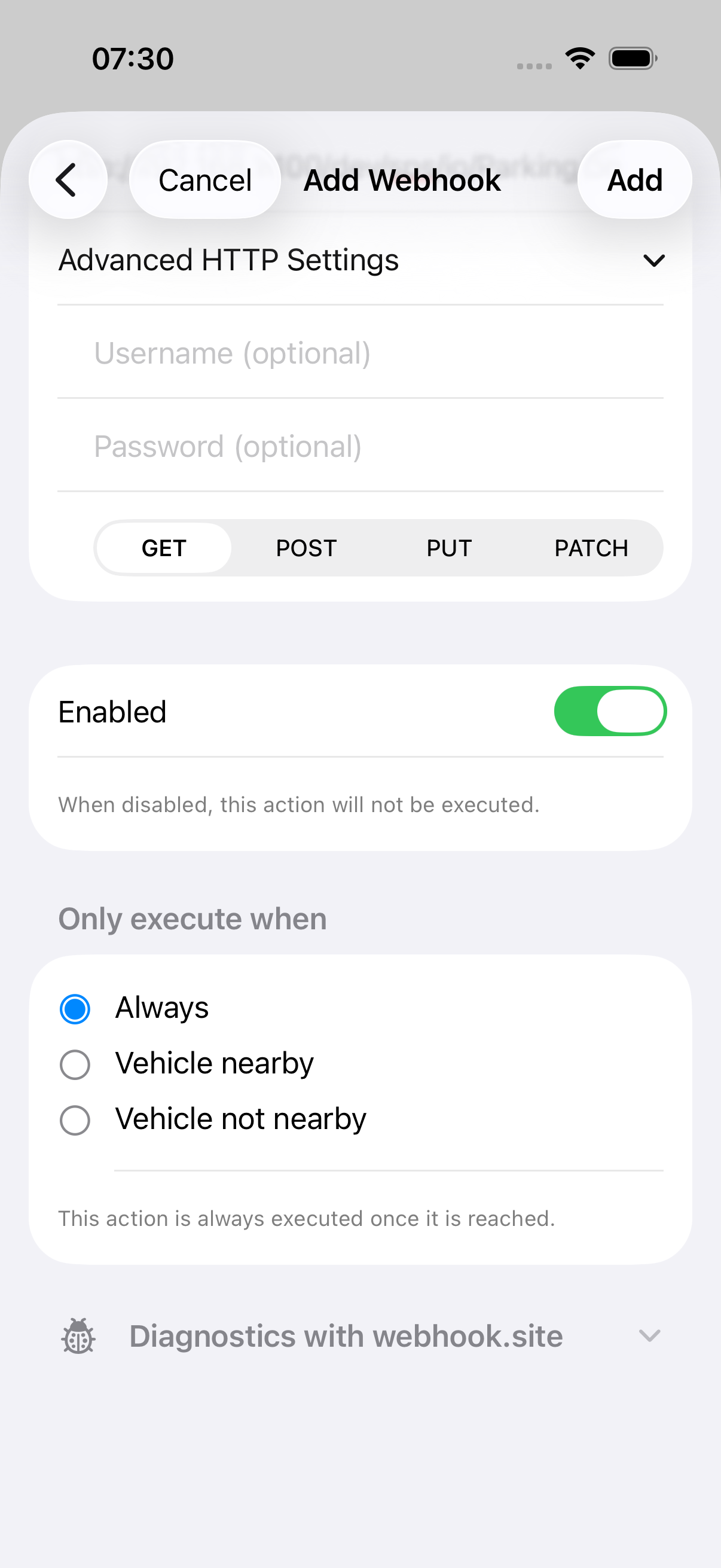
- Username/Password: Your Loxone credentials
- Name:
Expand Advanced HTTP Settings to enter your Loxone credentials:
Step 5: Add the Exit Webhook (Light OFF)
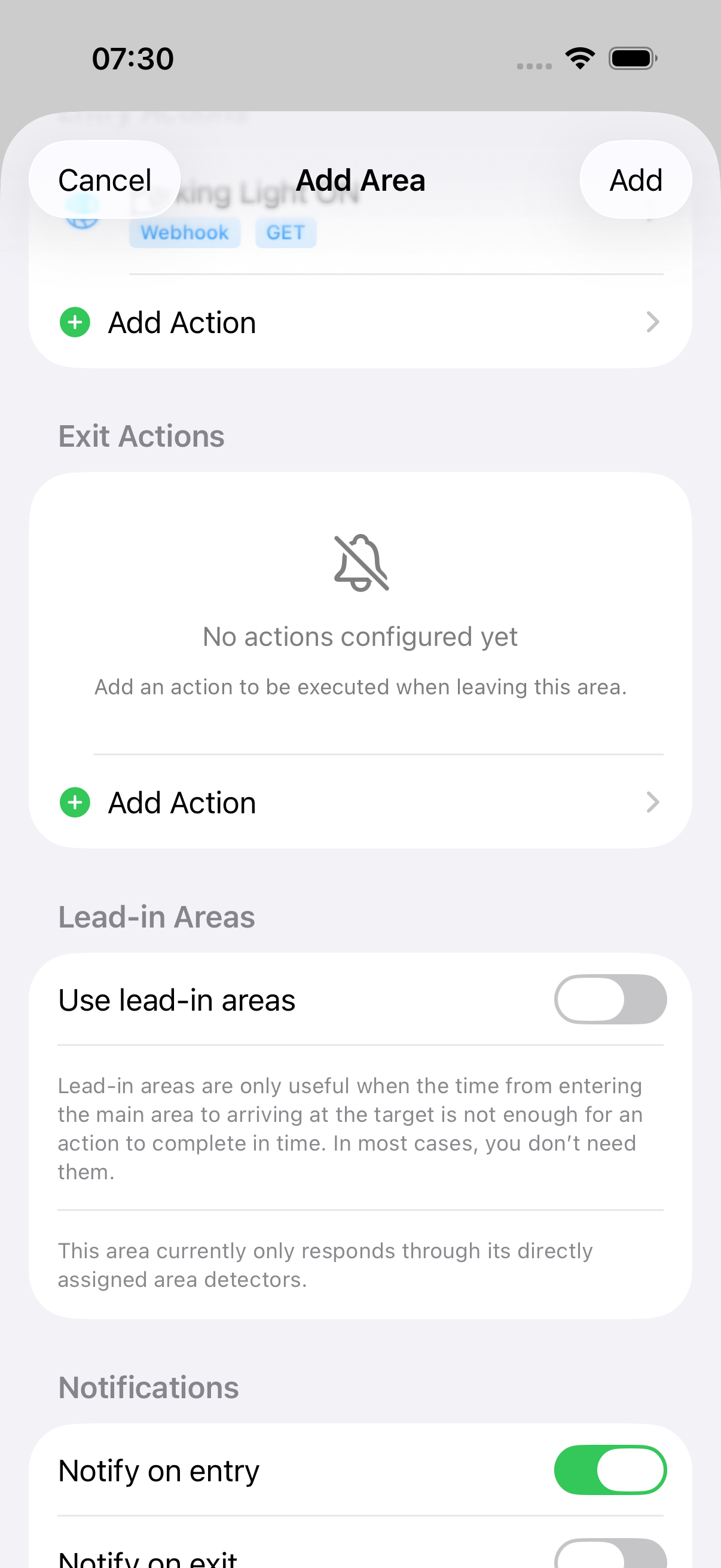
- In the location editor, go to Exit Actions
- Tap Add Action
- Configure the webhook:
- Name:
Parking Light OFF - URL:
http://192.168.1.100/dev/sps/io/GeoHook%20Parking/off - Method: GET
- Username/Password: Same Loxone credentials
- Name:
Step 6: Test It
- Open the location in GeoHook
- Scroll down to Debug & Testing
- Tap Simulate Entry — the parking light should turn on
- Tap Simulate Exit — the parking light should turn off
- Check the Activity tab for the webhook result (HTTP 200 = success)
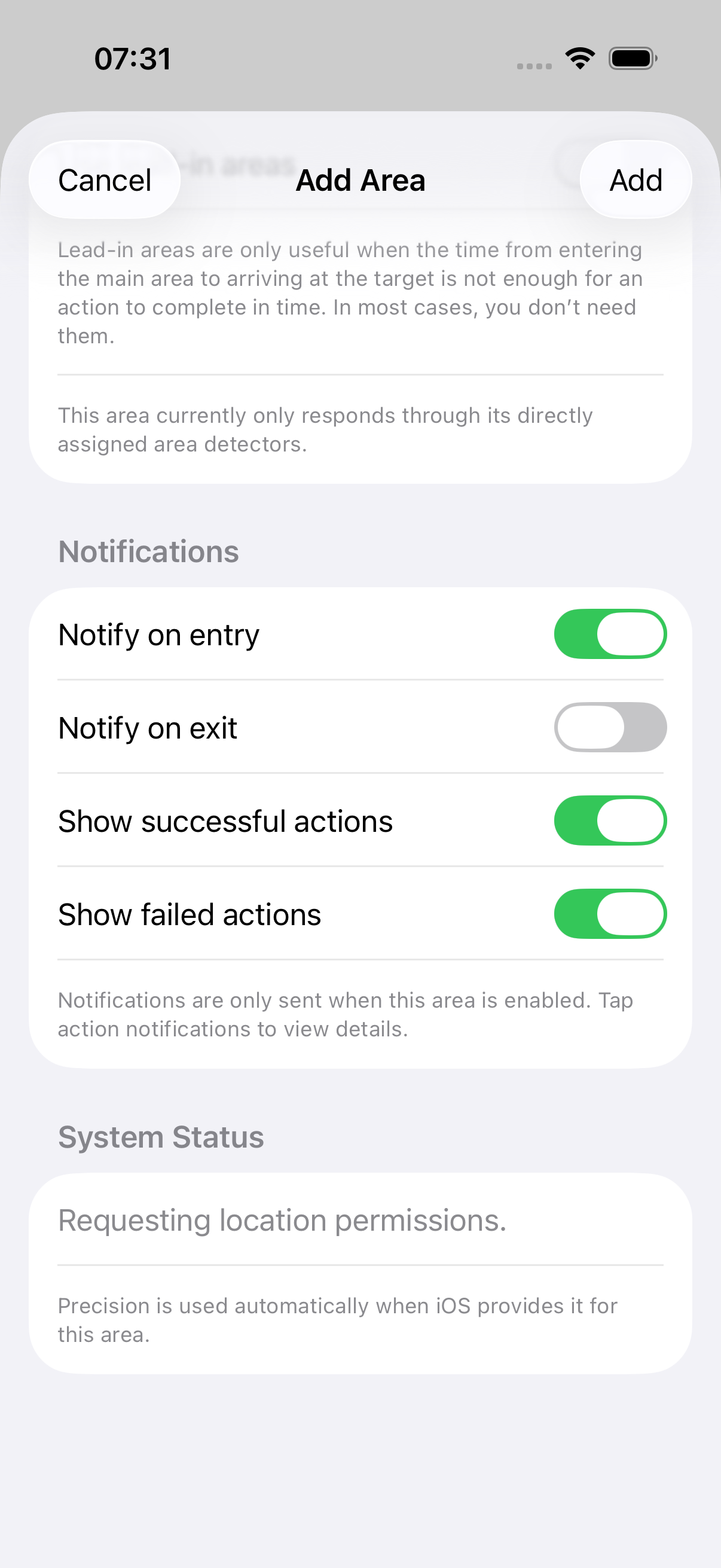
Troubleshooting: If you get a 401 Unauthorized error, double-check your Loxone username and password. If you get a connection error, ensure your iPhone is on the same network as the Miniserver (or use Cloud DNS for remote access).
Optional: Only When Driving
If you want the light to turn on only when you arrive by car (not when walking or cycling), add a vehicle condition to the entry webhook:
- Edit the entry webhook
- Under Vehicle Condition, select Nearby
- Choose your vehicle (Tesla Phone Key or iBeacon)
This requires a GeoHook subscription and a configured vehicle (Tesla Phone Key or iBeacon inside the car).