What You'll Build
When you arrive home and your car is detected nearby, the garage door opens automatically. When you walk or cycle home, nothing happens. The automation uses:
- GeoHook to detect when you enter your home area
- GeoHook Vehicle Detection to ensure you're driving (Tesla Phone Key or iBeacon)
- Homey to receive the webhook and trigger the garage door opener
Prerequisites
- GeoHook installed on your iPhone with an active subscription (required for vehicle detection)
- A vehicle configured in GeoHook (Tesla Phone Key or iBeacon placed inside the car)
- A Homey Pro or Homey Cloud with the Webhooks app installed
- A garage door opener connected to Homey (via Z-Wave, Zigbee, or another supported protocol)
Step 1: Create a Webhook in Homey
- Open the Homey app or Homey web interface
- Go to Apps → Webhooks → Settings
- Create a new webhook and give it an ID, e.g.
open_garage - Homey will generate a webhook URL like:
https://webhooks.athom.com/webhook/<your-unique-id>?tag=open_garageCopy this URL — you'll need it for GeoHook.
Step 2: Create a Homey Flow
- Go to Flows (or Advanced Flows) in Homey
- Create a new flow:
When…
Select Webhooks → A webhook is received with the ID open_garage
Then…
Select your garage door device → Open (or Toggle, depending on your device)
Step 3: Set Up the Area in GeoHook
- Open GeoHook and tap + to add a new area
- Name it “Home”
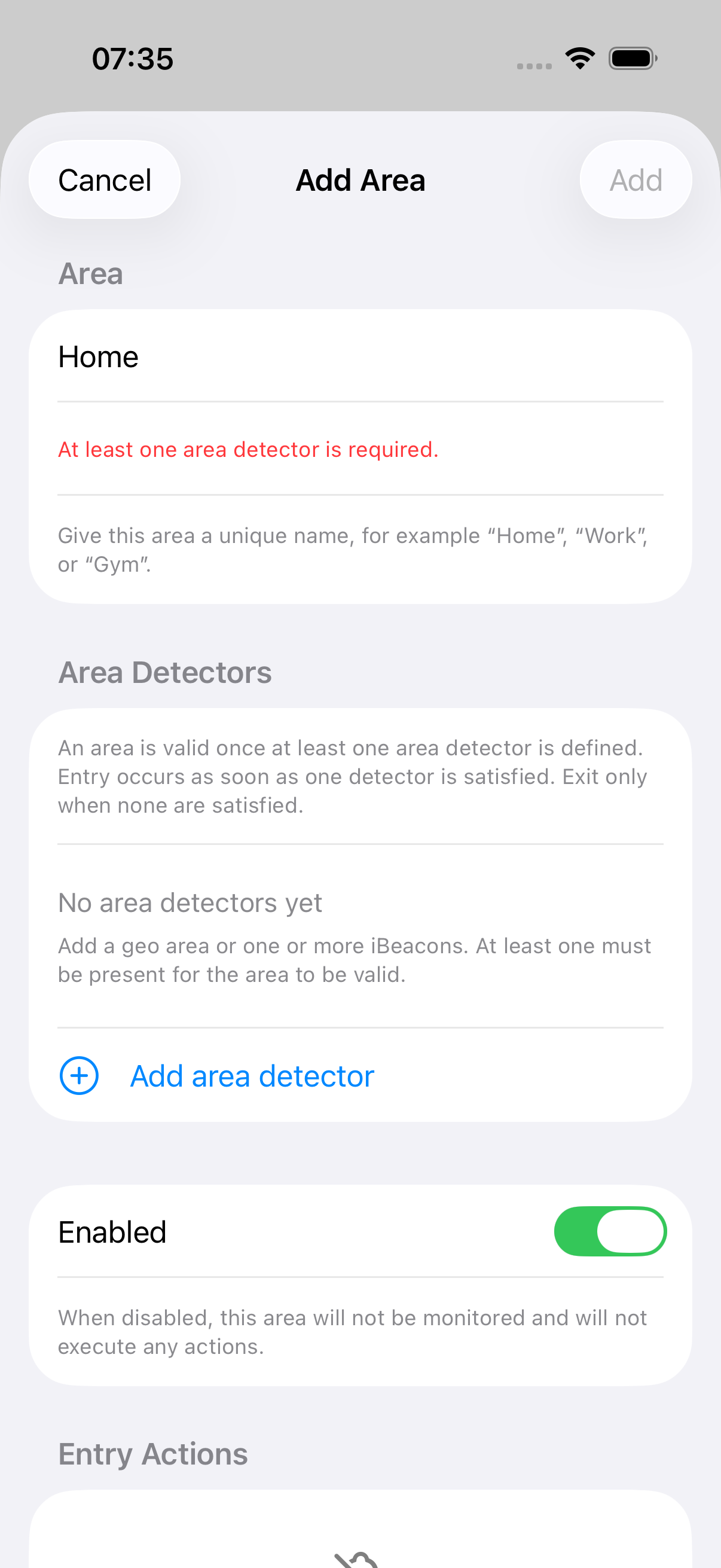
- Tap Add area detector
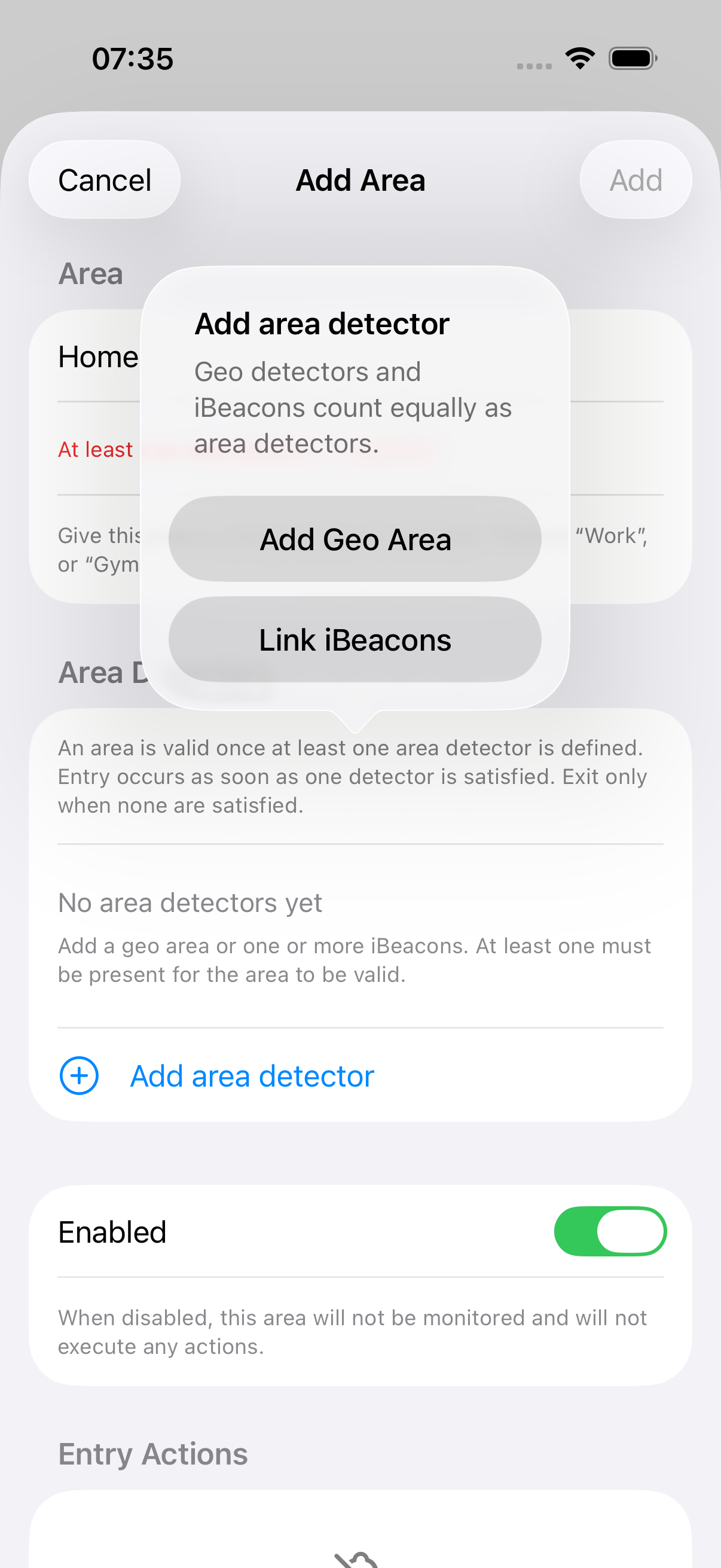
- Choose Add Geo Area
- Set the location to your home — use Use Current Location or Edit on Map
- Set the radius to 150–200m — large enough to trigger before you reach the garage
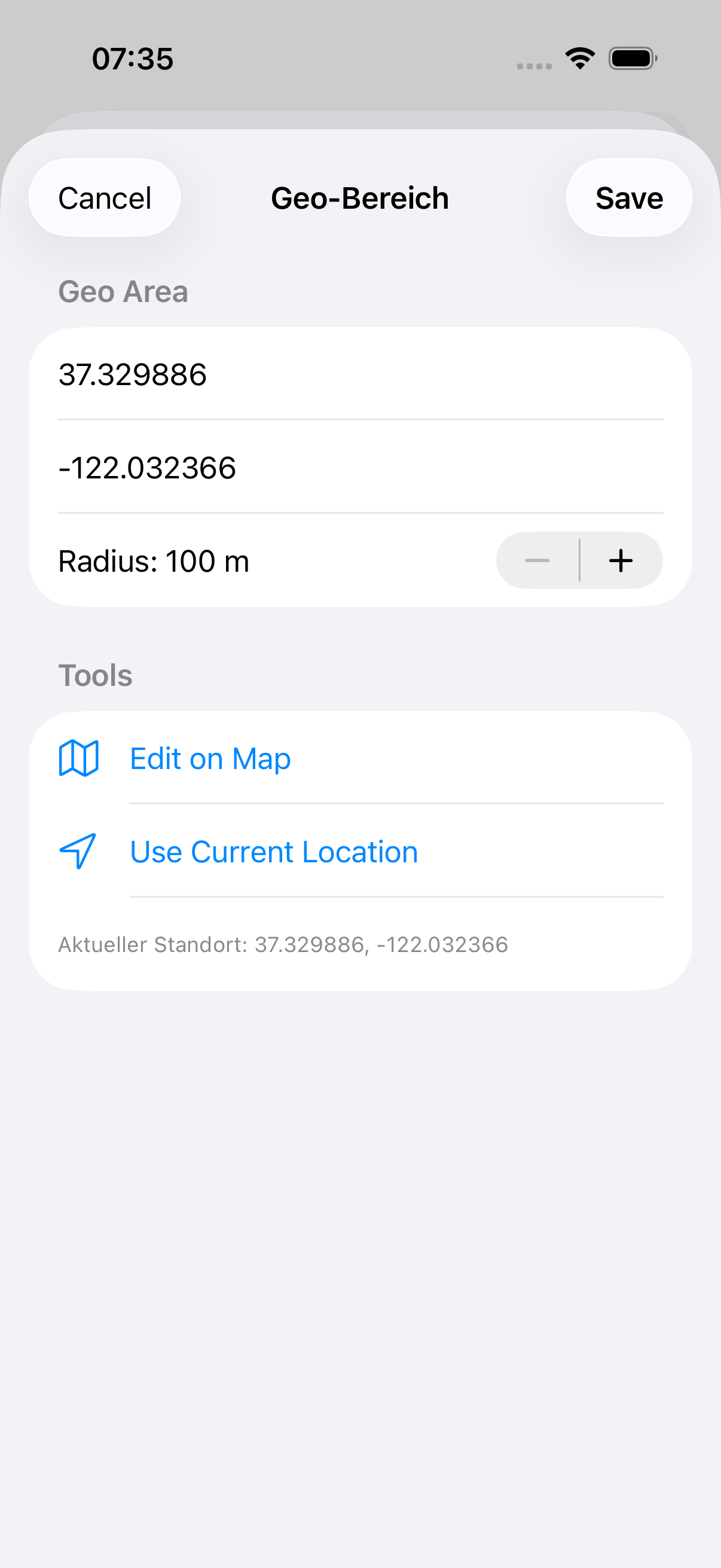
- Confirm with Save
Step 4: Add the Entry Webhook with Vehicle Condition
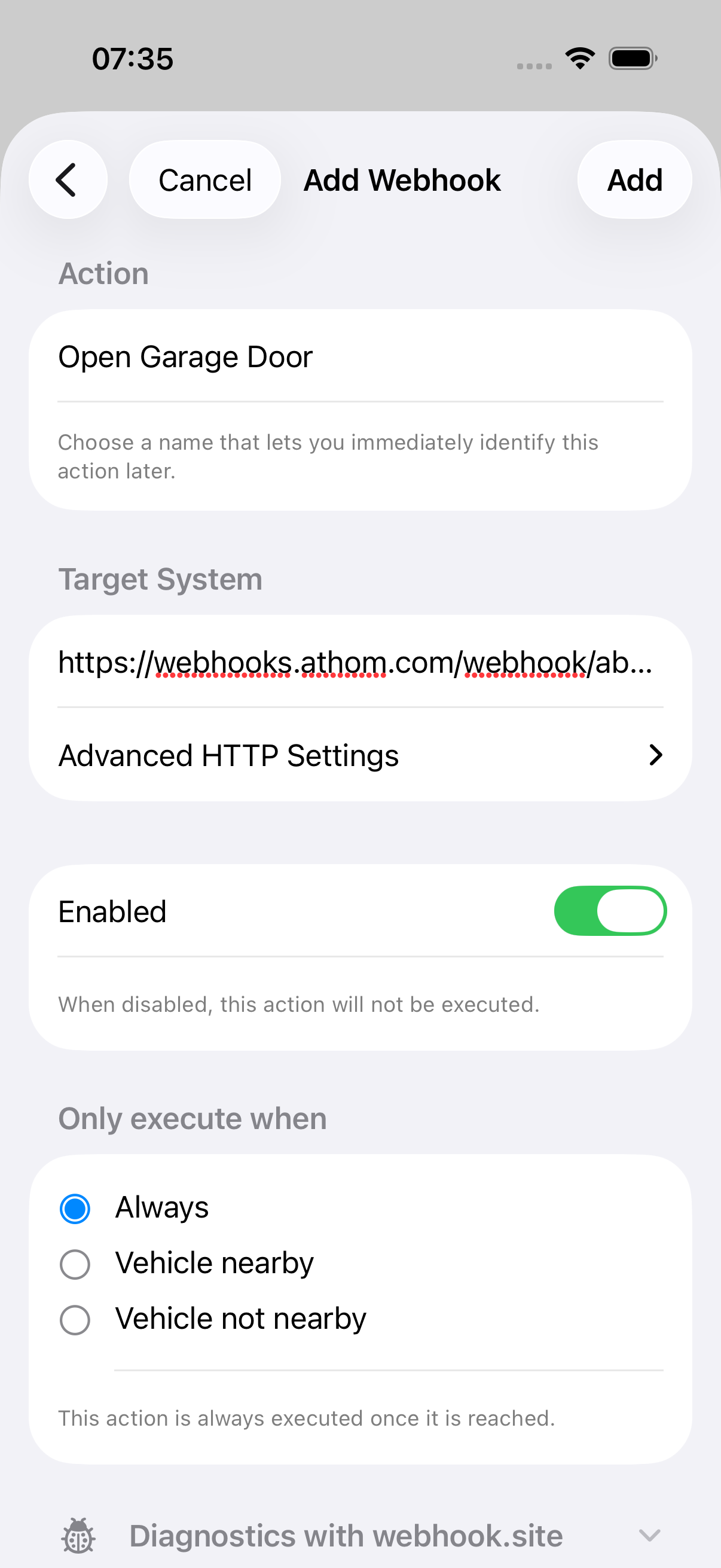
- In the location editor, scroll to Entry Actions and tap Add Action
- Configure the webhook:
- Name:
Open Garage Door - URL: Your Homey webhook URL from Step 1
- Method: GET
- Name:
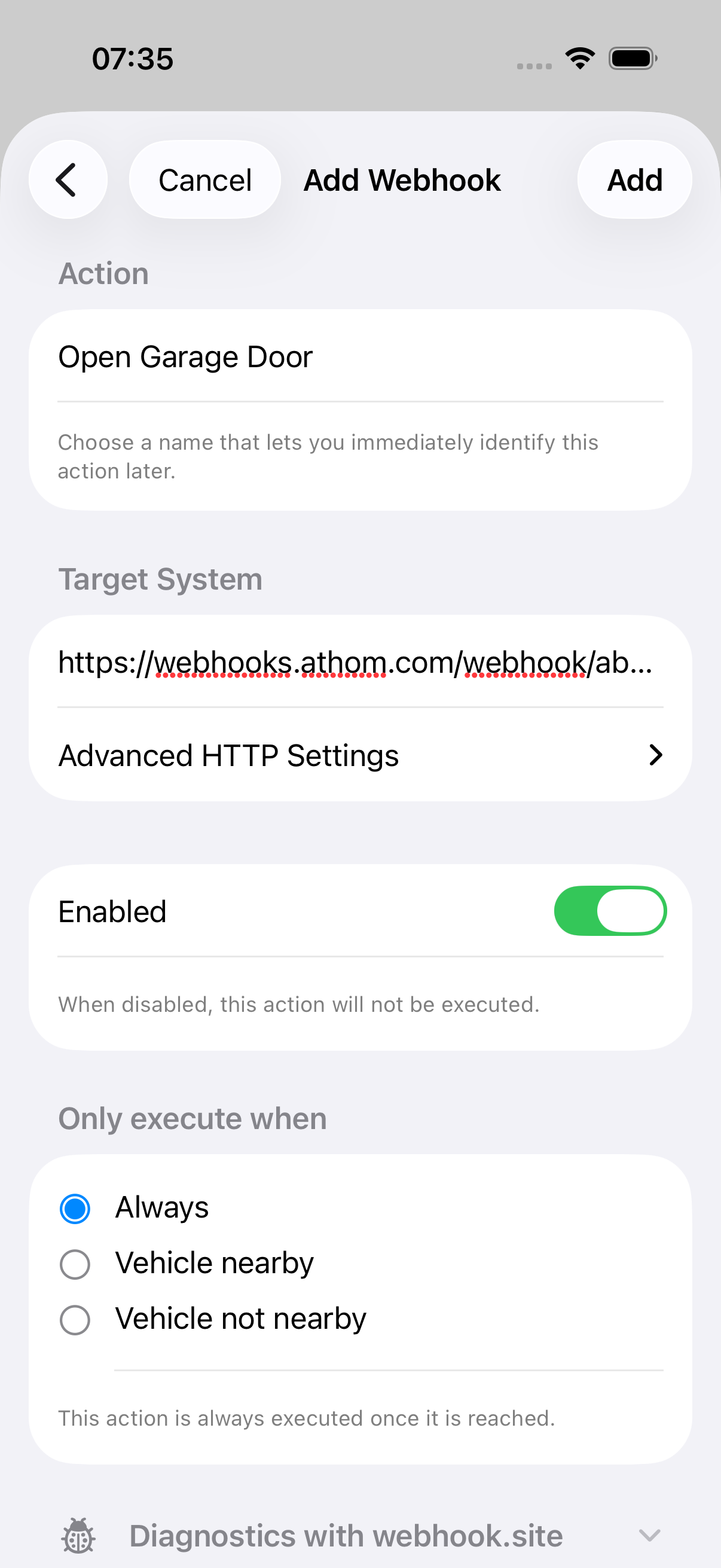
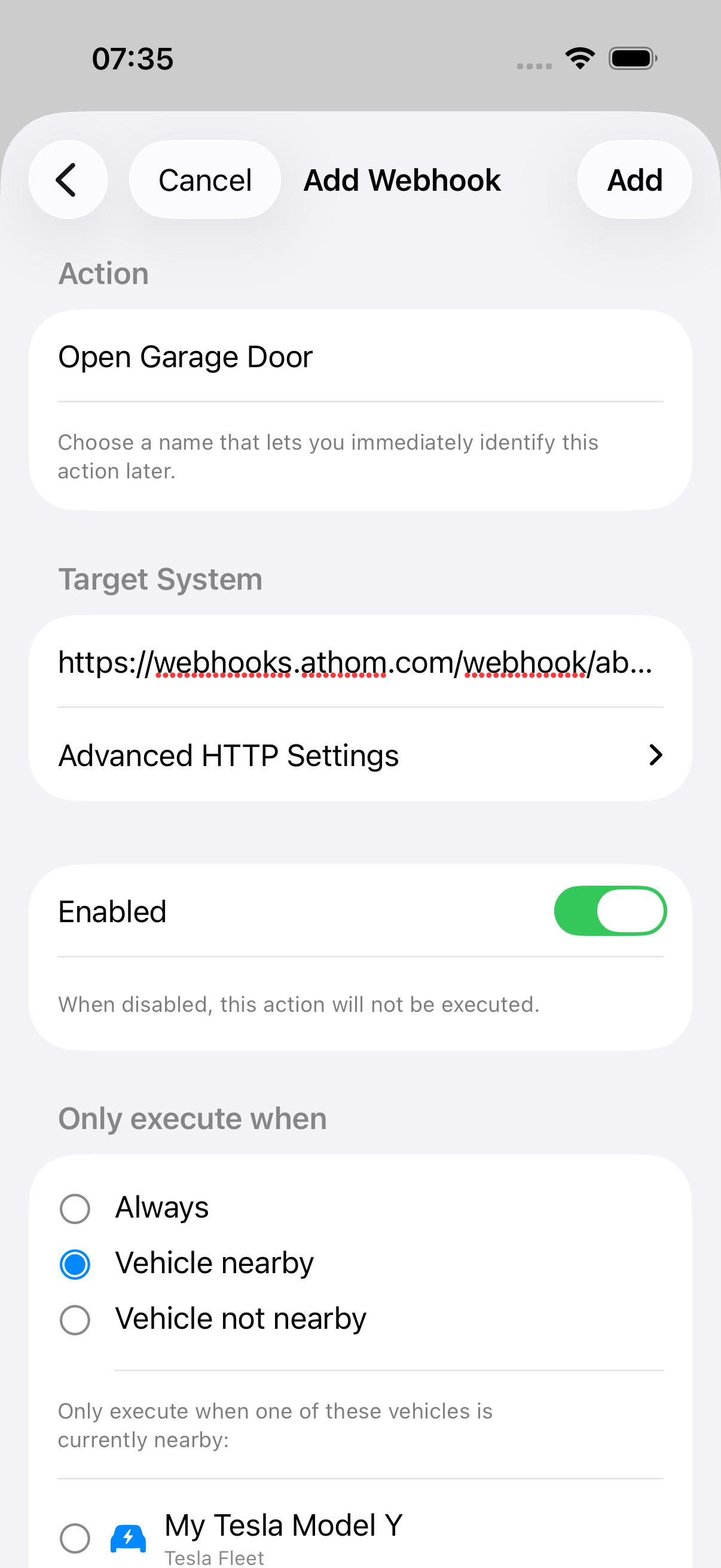
- Scroll down to Only execute when
- Select Vehicle nearby
- Choose your vehicle — this ensures the webhook only fires when you're driving
Step 5: Test It
- Open the location in GeoHook
- Scroll to Debug & Testing
- Tap Simulate Entry
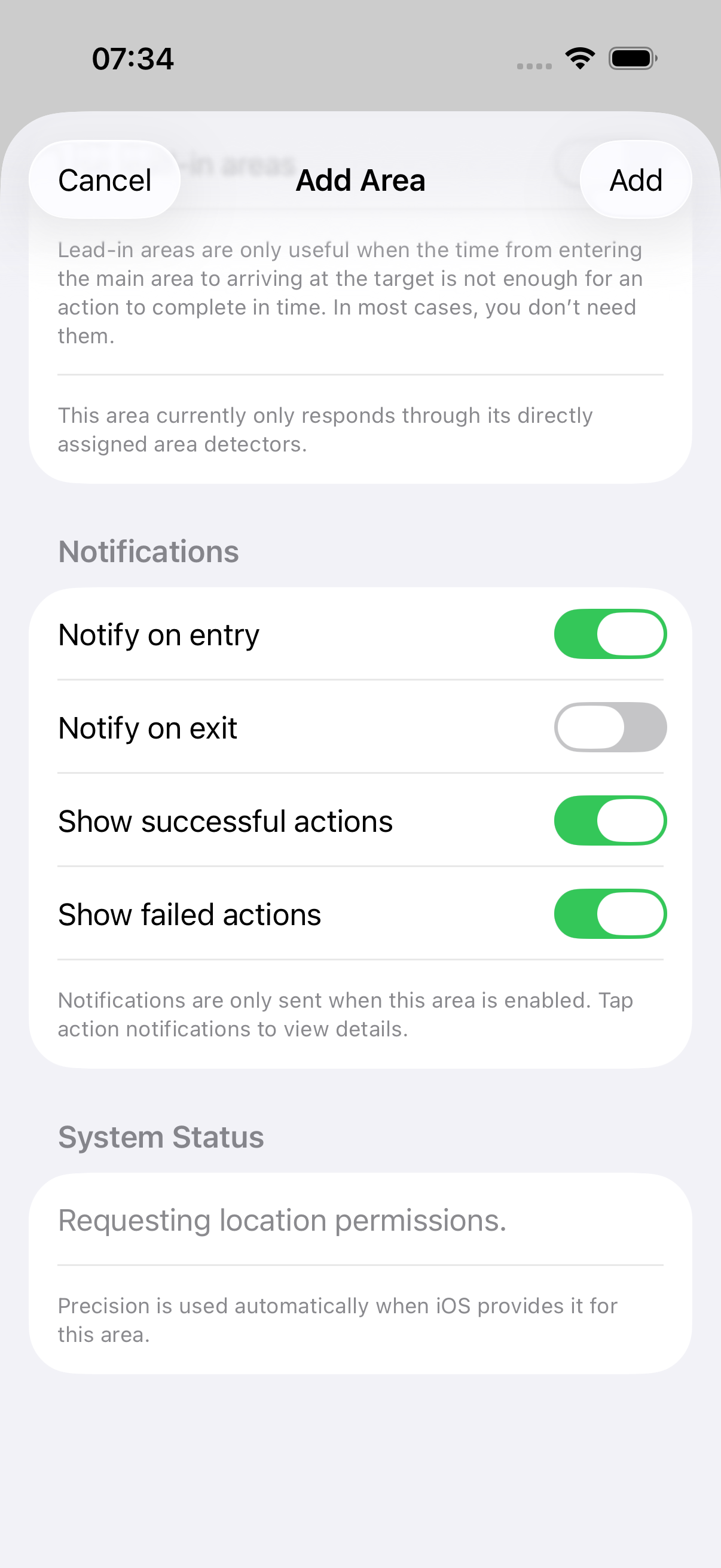
- Check the Activity tab:
- If your vehicle is nearby: webhook should fire with HTTP 200
- If your vehicle is not nearby: webhook should show as skipped (vehicle condition not met)
- Verify in Homey that the flow was triggered (check flow activity log)
Advanced: Close on Exit
You can add an exit action to close the garage when you leave:
- Create a second webhook in Homey with ID
close_garage - Create a second flow: When webhook
close_garagereceived → Then close garage door - In GeoHook, add the close webhook as an Exit Action
- Set the vehicle condition to Nearby (only close when leaving by car)
Advanced: Lead-In Area for Earlier Trigger
If you want the garage to start opening before you actually reach it, use GeoHook's Advanced Arrival feature:
- Edit the location and set Arrival Mode to Advanced (Early Arrival)
- Add a lead-in area with a larger radius (e.g. 300m)
- Enable directional check to only trigger when approaching home (not when passing by)
- Move the garage webhook to Arrival Actions (shared between lead-in and main area)
This gives the garage door time to open before you pull into the driveway.
Tip: If you only need the lead-in area as a wake-up helper for precision mode (not to trigger actions early), enable “Defer main area actions” in the lead-in area settings. This way, the app wakes up and activates precision monitoring when entering the lead-in zone, but actions only fire when you actually reach the main area.